Tuesday, January 17, 2012

Installing Xilinx ISE Webpack on Linux workstations

Recently I pulled out the old Field Programmable Gate Array (FPGA) from my desk and dusted it off to get it ready for some small projects. I'd just like to get a little more into digital design, etc. My experimenter board of choice is the Digilent Basys2 Spartan 3E FPGA Board. This is my board of choice because it's not very expensive and though many people tell me the Spartan 3E are obsolete/deprecated. However, this is what I have so it's the board and chip I'll use.

But before I can go off and put any designs on the board I need to pick up some digital design software. I'll be using Xilinx's ISE WebPack (currently version 13.3).

The following outlines the steps to getting started with Xilinx ISE WebPack on Linux based machines.

  1. Goto: http://www.xilinx.com/support/download/index.html/content/xilinx/en/downloadNav/design-tools.html and download the latest version of Xilinx ISE WebPack for your platform (Linux Full Installer).
    1. You will need to register a Username/Password in order to get the download, this registration will also be used when getting the Licensing file to activate ISE WebPack, so keep a copy safe and available!
  2. Confirm the download was successful by comparing MD5 checksums on the archive to the information at the above location.
    1. This requires openssl
      1. eg. “openssl md5 Xilinx_ISE_DS_Lin_13.3_O.76xd.1.0.tar”
  3. Untar the archive
    1. This requires tar
      1. eg. “tar -xvf Xilinx_ISE_DS_Lin_13.3_O.76xd.1.0.tar”
  4. Enter the directory for the Xilinx installer:
    1. eg. “cd Xilinx_ISE_DS_Lin_13.3_O.76xd.1.0”
* ISE WebPack will ask for an installation directory during execution, the default is “/opt/Xilinx/13.3” (for the latest version as of 1/5/2011). The effective user must have write access to “/opt/” in order to install to this location. Speak to your system administrator for more information.
  1. Execute xsetup
    1. ./xsetup
  2. Click “Next”
  3. Review 1 of 2 License Agreement, click “I accept...” followed by “Next”
  4. Review 2 of 2 License Agreement, click “I accept...” followed by “Next”
  5. Select ISE WebPack, click “Next”
  6. Check the following:
    1. “Acquire or Manage a License Key”
    2. “Enable WebTalk to send software...”
    3. “Ensure Linux System Generator Symlinks”
    4. Click “Next”
  7. Check “Import tool preferences from previous version,” click “Next”
  8. Click “Install”
  9. Select “Get Free ISE WebPack License,” followed by “Next”
  10. Click “Connect Now”
    1. A browser should open redirecting you to login to register your ISE WebPack OR
    2. If this does not occur, you may follow the following link:http://www.xilinx.com/getlicense/
  11. Login using your credentials acquired through the registration process in Step 1.
  12. Confirm or Modify any registration information and click “Next” in your web browser.
  13. Continue any on screen instructions for generating a License Key [Unfortunately: I did this a while ago and no longer need to do it again. I merely managed my existing license and had a new copy of the Xilinx.lic file (the license) to me.]
  14. Once you have your Xiling.lic file emailed to you, download it to any directory and Select “Copy License File”
  15. Browse to the file location select the file, you will be prompted with a successful message, click “OK” followed by “Close”
  16. Click “Finish”
This concludes the installation of Xilinx ISE WebPack.

Coming soon, a quick intro to using ISE WebPack to load the default program...

Monday, February 28, 2011

Trying out Fldigi

As previously mentioned, I am a ham nerd. Yep, I like listening to the radio. Morse code? Never touched it. That's alright though, modern technology has removed the requirement for knowing those sorts of things (almost).  For instance, using computers to handle that work for us. Of course someone had to know it to make the software originally. But collaborative works are like that, you each do your part for the greater good.

Enter Fldigi. It's, simply put, a modem that runs off a sound card. It comes with a plethora of operating modes and data rates and allows for very available methods to do digital transmissions using your radio. I will have to point out that the first night I tried this I did not do any transmissions. I just listened in. Locally I found the VOR of our airport sending out it's identifier, tuned in, and watched Fldigi do it's magic.

Some configuration was required but it was trivial. Set the mode to CW, zero'd in on the frequency, and it automagically detected the rate. Then there it was... typing slowly out... my local airport's identifier. Very, very, very cool.

Here's what I needed:
My Yaesu FT-60R
Pryme Hand Mic
Male-Male 3.5mm 3 conductor (stereo) cable
My Computer, running Ubuntu whatever - it's up to date.

Steps to achieve to this:
Turn radio on tune to frequency performing digital transmission (or CW in my case)
Plug hand mic into radio
Plug audio cable into Headphone jack of hand mic
Plug audio cable into aux line in, or Microphone of computer
Install Fldigi: sudo apt-get install fldigi; fldigi &
Go through and configure your options, ignoring PTT for the moment
You should see the waterfall (pretty blue, yellow, orange) flowing at the bottom
Move the Red-box over the band of yellow/orange which looks like morse code
Magic happens.

Presto that's it!

Thursday, January 27, 2011

Modding My Yaesu FT-60R

Yes, I am a Ham Nerd...

The decision to become a ham was a actually made years ago. Though I didn't pursue it then... I've since come to realize that telecommunications are as very important to my life as verbal and non-verbal communication. I spend a lot of time on the Internet and the radio.

Alright, not as much on the radio as other hams. But I do enjoy catching the local nets from time to time. Hearing the other people out there, being able to chit-chat with the locals and the DXers (if I get the opportunity). Get to hear some fascinating things... especially about Medicare and rascal scooters.

So I get it into my head to modify my FT-60R, the reasons are because it should be fairly easy, will exercise some basic de-soldering skills, and these modifications would open up my radio's ability to transmit from 137-174 Mhz and 420-470 Mhz. I'll need to check this per country, but I believe this may come in handy elsewhere (literally). Not to mention, as my friend Bill Wells always said... "Carry an umbrella and it won't rain." In the highly unlikely event it was ever actually needed, it would be available.

In the U.S. as an amateur you may transmit between 144-148Mhz and 420-450 Mhz. Obviously this modification would open me up to the possibility of legal issues in the U.S. if I were not careful. Luckily I am familiar with these specifics so keeping within our little play pin in the U.S. should be no problem what so ever. In fact I keep a reference copy of the ARRL US Amateur Radio Bands on my cell phone for reference (ham nerd, remember?)

Now, the mod... I read someone else's work on this. Originally I read this when I first bought my radio and wasn't sure if I'd actually give it a try. But after watching a bunch of videos on SMT, I thought this may be an excellent way to ease into that sort of thing. The article I followed may be found here.

So this is not a terribly complicated process, in fact it's pretty simple. Just remove 1 resistor. Remove 1 very, very, very small resistor.  Remember when I said it'd be fairly easy, exercising basic de-soldering skills? Well it would have been. If it wasn't for this...


Turns out buying a radio from the reds in China is both cheaper and will come without a band filter. So it would appear my radio already has the ability to transmit at it's highest potential, since it's missing that little resistor and all. A job well... um... easily... um... not done by me at all. But the radio went back together pretty smoothly ^_^ once I remembered to the put the battery clip back on before putting the screws in again.

Cheers

Wednesday, January 12, 2011

ASCII Experimenter's Coding and Process, Part 1

First blog of the new year, I am excited.


All inventions start with an idea. That idea is grown over time into a design. The design is formalized and then you can start building, prototyping, discovering those things you may have missed and need to be fixed. That's where I am right now, redesigning portions of my little device. Originally I was thinking I could drive whole rows with the 74HC08's. These devices have a maximum current rating of about 25mA, which frankly isn't enough to run 4 x 20mA LEDs simultaneously. I say 4 because the 8 are split across 2 chips. Luckily I can still use them, I just need to be a bit creative.

By arranging my 2 shift registers (74HC164) in a rectangular fashion I can form a grid space of 64 states. Conveniently I have 64 LEDs I may be interested in driving, what providence! Now my 74HC08's can only drive 1 LED at a time each because the Red LEDs in my matrix run at 20 mA and I'd like to maximize this current flow for the effect of viewing the LEDs.

So if I shift in a 1 into both the row and column registers and set the OUT_EN, output enable (which ties into the 74HC08s), HIGH and then the first LED in the corner will turn on. The row register activates the current sinking transistor which will sink the current sourced from the selected 74HC08 pin.

So let's look at how to do this in code. Unfortunately I've skipped the process of designing and watching this code fail (a lot), so I will only be sharing the more decidedly interesting parts of the program in the articles to come. Most of which revolves around getting the data into the chip to begin with. Keeping in mind this is my first ever electronics project of my own design.

Right... code... I assume all I/O has been correctly setup (and I'll show this in the future) for now I'll make a little function called displayMatrix(), void return type and no arguments. Parameters are passed in global memory space (aka the stack). This function also relies on a delay function, which is a small tight loop to add a short delay of a couple of cycles, I'll include this as well:

#define LEDS P1OUT
#define OUT_EN   1
#define ROW_DATA 2
#define ROW_CLK  4
#define COL_DATA 16
#define COL_CLK  32
#define DELAY_TICKS 30

void displayMatrix(void)
{
        volatile unsigned int row;
        volatile unsigned int col;
        LEDS &= ~(OUT_EN | ROW_DATA | COL_DATA | ROW_CLK | COL_CLK); //Clear data and output enable
        LEDS |= ROW_DATA; //Set row data lines, start at row 1.
        LEDS ^= ROW_CLK; //Clock row data in
        LEDS ^= ROW_CLK;
        LEDS &= ~(ROW_DATA); //Disable row data
        for(row = 0; row < 8; row++) //Rows
        {
                LEDS |= COL_DATA; //Set column data, start at column1.
                LEDS ^= COL_CLK; //Clock column data in
                LEDS ^= COL_CLK;

                LEDS &= ~(COL_DATA); //Disable column data             
                for(col = 8; col > 0; col--)//Columns
                {
                        LEDS |= OUT_EN & (matrix[row] >> (col-1) & 0x01); //Enable output
                        delay();
                        LEDS &= ~(OUT_EN); //Disable output.
                        LEDS ^= COL_CLK; //Next column
                        LEDS ^= COL_CLK;
                }
                LEDS ^= ROW_CLK; //Next row
                LEDS ^= ROW_CLK;
        }
}
void delay(void)
{
        volatile unsigned int k;
        k = DELAY_TICKS;
        while(k>0)
                k--;
}

This does have some requirements, for instance due to the nature of the >> and & logic I use, it requires the OUT_EN (P1.0) to be the LSB. All other pins I believe are safe from this restriction and may be moved about at will, as long as you remember to setup the bits in the #define section correctly. Of interesting note, using the TI MSP430- Launchpad I originally used P1.3 for the COL_CLK, this led to a drastically unreliable display.

As it turns out, there is enough noise on this pin when using the launchpad to trigger the 74HC164 clock an extra time or more when transitioning! This noise is caused by a switch attached to that same pin [image to come]. Rather than adding hardware to fix this, I merely avoided it's use, though I do plan on using it with 74HC151 in the future on that pin, but it'll be as an input instead of an output.

This code turns on 1 pixel at a time and splits the entire on time across all 64 pixels, displaying or not. This gives it a uniform brightness which I believe is desirable. My question to everyone else out there.
Can you see a reasonable way to turn 2 LEDs on at the same time (only 1 per 74HC08)?
I have some ideas on how to do this too and I'm willing to spare another pin for a secondary OUT_EN2. Hopefully I'll get some updated schematics up soon too, to assist anyone interested in my design stuff! Thanks :-D

Thursday, December 9, 2010

IAR Kickstart and MSP430 Launchpad

Well, finally, my toys have arrived. And it's awesome. Naturally the first thing we did was say "Let's hook it up!" We performed the typical unboxing procedure:

1. Tear mail package into many small pieces, remove launchpad box.
2. Tear launchpad box into many small pieces, remove all baggies.
3. Tear anti-static bags into many small pieces, remove all components.
4. Ignore QuickStart guide entirely.
5. Google Getting Started with MSP430 Launchpad.
6. Plug things in without reading any results from search.
7. Lights turn on and off, make 'oooo' and 'aaaa' sounds.
8. Download IAR KickStart and install and try to increase LED duration etc using example code.
9. Realize you skipped a lot of steps and don't have any idea wtf you are doing...

So this was all great and fun, we wired the chip to some opto-isolators with some 1K resistors in series, then use a Darlington array and attach some motors and watch them spin up and down all the while giggling like grade schoolers in recess. Now to download a new program to the MSP430 so we can have a little more control over what's happening and leave H-Bridge design to the mechanical engineer (because this makes sense... right?).

H-Bridge design is less than successful, it rolls into 11pm and it's getting late. We're having issues with the IAR KickStart Software (PEBKAC). The mechanical engineer becomes derailed with gear and motor ideas forgetting entirely that the initial hope was to have a basic prototype within the same day. And now you could analyze the increase of personal tension as a third order derivative.

The issue with downloading the new images to the 430 is as follows:
Failed to initialize device
Well... wtf does that mean? Google yields lots of people saying "Use CCS," and "Make sure your drivers are correct." Not being particularly interested in the first option, due to preference and stubbornness, I check my drivers. Low and behold this is not where my problem lies. So I keep researching, keep researching, finding only more of the same garble... then in the comments on some forum somewhere I see it, the thing I should have known better, the thing that the getting started guides should have explained but didn't.
Project -> Options -> General Options -> Target Device
 Of course, I forgot to set my target device!  Somewhere, I would have thought, they would have mentioned this. But alas they did not, and hopefully if you're reading this you're kicking yourself the same way I did. But with the calm collected realization that your project can continue on. Then it was time to stop and sleep.

Wednesday, December 1, 2010

Powershell and MSDeploy.exe

As some people may know, I've been playing with Powershell a lot for work lately. Most recently I've also been using joining powershell with a Web Deploy executable, msdeploy.exe. And I've run into a couple of bugs I've noticed some other people have also had issues with.

At my place of employment we have a multi-tier development environment. This consists of 3 tiers we adoringly call "dev," "test," and "prod." We also have some lateral environments (lateral to our test environment mostly) which we call "staging" and "training." On to the problem and solution...

The issue was syncing a remote server's IIS AppHostConfig settings to my local machine. I tried to sync our dev environment's settings to a package locally, which I will later sync that package to my localhost environment. This script's goal is to allow us to rebuild a development box in rapid order when a developer gets a new or re-imaged machine. Here's the command I was using:

msdeploy.exe -verb:sync -source:appHostConfig="Site1",computername=devserver -disableLink:ContentExtension -disableLink:CertificateExtension -disableLink:FrameworkConfigExtension -disableLink:HttpCertConfigExtension -dest:package=c:\IIS.zip

This was pretty much stolen right out of Synchronize IIS 7 and was very disappointing to see this error occur:

Error: Unrecognized argument '"-source:appHostConfig=Site1  computername=devserver"'. All arguments must begin with "-".
Error count: 1.

Pretty much my first response was a lipping of  "W.T.F." (we have Mormons in the office who may otherwise be offended if I yelled this top of my lungs) followed by an intense urge to Google the error.

So I did.

I did not find any great results...

Then I realized of course, this is probably because all the information I need is in the error! Unrecognized argument "-source:" So what follows the colon must be the expected argument... which we have "appHostConfig=Site1 computername=devserver" wait a second... That isn't what I typed, there is no space, I used a comma! Where'd it go? I am gonna guess it was stripped out by powershell which then invalidates the whole argument for -source.

The Solution you ask? A little quotation magic:

msdeploy.exe -verb:sync -source:"appHostConfig='Site1',computername=devserver" -disableLink:ContentExtension -disableLink:CertificateExtension -disableLink:FrameworkConfigExtension -disableLink:HttpCertConfigExtension -dest:package=c:\IIS.zip


And presto, the double quotes force the whole inner text to be 1 argument, without stripping out the comma. Which is precisely what msdeploy.exe expects. IIS synced.


Cheers,
  -Ken

Sunday, November 14, 2010

Creating an ASCII Experimenter For Young Scholars

If you're not interested in my opinions on education, skip this paragraph. For those still reading, my boss at work, nice guy, has a couple kids in a Montessori School. Anyone who knows me personally, and this blog should now be included, knows that I hold this form of education in high regard. It seems to me that people of all ages have a natural desire to become better at the things they do. The drives to realize mastery in a skill change with age and the needs your individual has in a their environment. In children, if the given environment is one where most needs are met (ie. physiological, safety, community, and esteem) then a child can grow rapidly and approach intellectual maturity far beyond most adults. Yes, children are in their intellectual prime, and they are our future - share your knowledge with them.

Now, my boss asked if I could develop a device to assist in a lesson concerning binary and computation. I thought for a moment and realized that "Why yes, yes I can." I've always been a fan of near instant feed back. It's mostly why I work with computers. So here's the design needs for now:

1. 8 Bit data entry
2. Display corresponding ASCII character
3. Data entry needs to be easy enough for a child to use.
4. We're not all rich so it needs to be fairly cheap.

So here's the plan:
8 switches of some sort + 1 push button for "Enter" (Multiplexed)
8x8 LED Matrix Display
MSP430Gx2xx (TI Launchpad, for grins)

For the display, we'll use the matrix and we'll drive it with 2 8 bit shift registers (more info) and some AND gates for output enabling. The basic layout in my head looks like this:

Display Driver

Notice we feed the Row Select shift register CLK (outer wire at bottom) with the rising edge of the LSB of the Column Select shift register. This will allow us to do entries into the row select only when we're toggling the LSB of the column, this will present some interesting coding challenges.

Originally I didn't have the transistors in there, and then I kinda remembered that the row shift register won't be able to sink the sourced current of the column shift register due to being in high impedance. So we use npn transistors (3904 because I had a bag of them laying around) to sink the current, controlled by the row select shift register, and series in some 500 ohm resistors on the a collector side to protect our LED matrix (which by the way is the most expensive part of this project!)

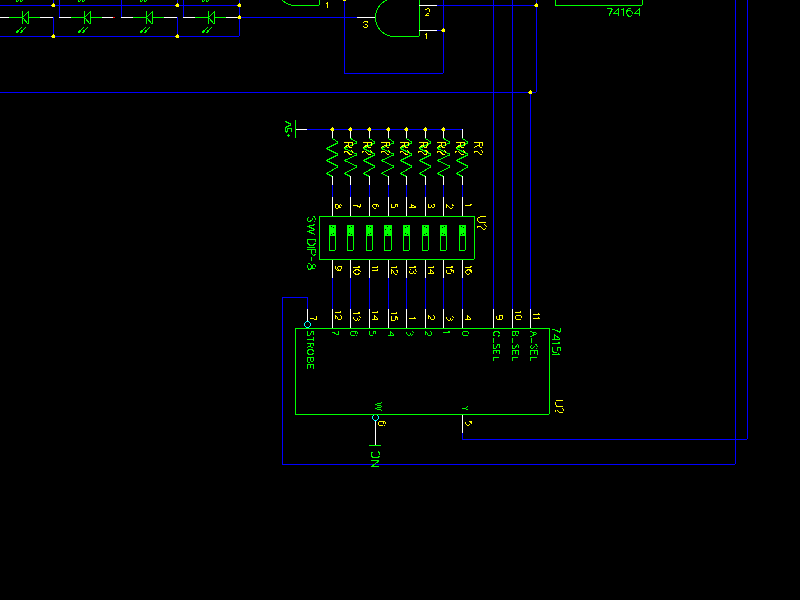
For the input, due to I/O constraints on the MSP430 (10 pins), I'm thinking we'll use an 8:1 multiplexer which we'll layout kind of like this:


Data Input (8:1 Mutiplexer)


Notice we use the LSBs of the Column Select shift register to control the select lines of our 8:1 multiplexer, so we can address our 8 switches and to prevent the noise of shifting our select bits in, we'll just turn the OE off and voila no display for a fraction of a second while we poll for data when needed.

Now the MSP430 ties together with these other components to make a near complete schematic.
Whole circuit

When the pushbutton on P1.2 (at top, 1 resistor + pushbutton) is pressed, we'll read in the values through the mux, then we'll a display the corresponding ascii character. So in the next post we'll talk about the shortcomings (if I missed something) and the software to drive this groovy display. I may also look into how to get the chip to turn off the display peripherals when it's been inactive for a couple minutes, and other similar things.